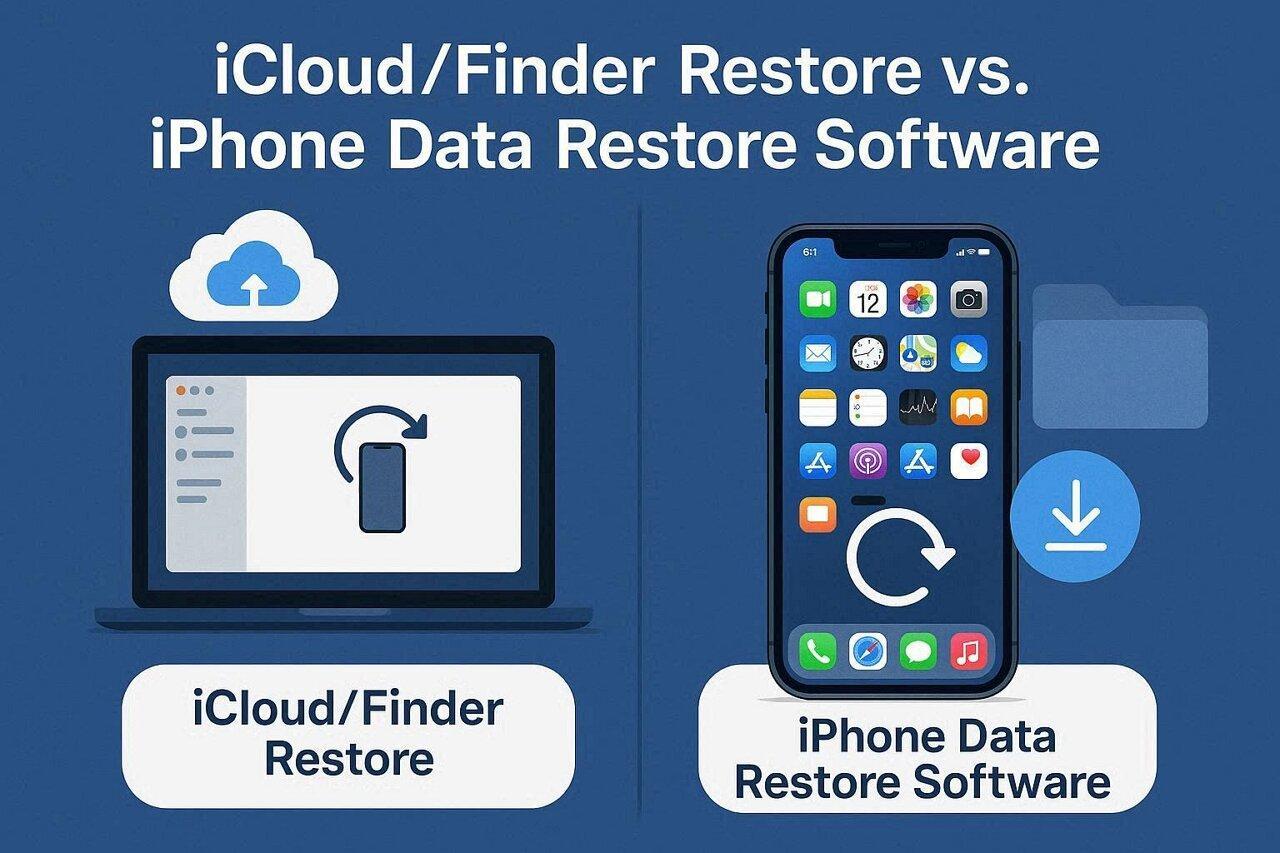
Although losing iPhone data can feel sudden and stressful for anyone, recovery is possible. Many users are unsure whether iCloud, Finder, or other recovery methods work best. Choosing the wrong method may worsen problems and cause permanent data loss later. Moreover, knowing which recovery option suits users helps save time and avoid mistakes.
For missing or incomplete backups, Dr.Fone data recovery software provides a guided solution. It simplifies the recovery steps and makes restoring lost files safer and faster. So, this article compares iPhone recovery methods and explains the best approach.
Part 1: Compare Recovery Sources: Sync, Backup, and Device-Based Attempts
When recovering iPhone data, knowing each source helps prevent further mistakes or loss. Understanding how sync, backup, and other recovery functions avoid wrong choices. For more complex cases, iPhone data restore software can help guide users. Thus, this section explains the differences among recovery sources and when to use each option:
| Recovery Source | What It Restores | Prerequisites | Pros | Limitations |
|---|---|---|---|---|
| iCloud Backup | Full device data, including photos, apps, and settings | Apple ID, active iCloud backup | Official and secure | Overwrites existing phone data |
| Finder (iTunes) Backup | The entire device, depending on backup settings | Computer connection, encrypted or regular backup | Full restore control | Cannot restore without a recent backup |
| Device-Based Sync | Photos and contacts are already synced to iCloud or apps | Same account logged in | Easy and automatic | Only restores synced data, not deleted files |
| iPhone Data Restore Software | Selectively recovers messages, media, and app data | Computer access, compatible software | Can recover missing or deleted items | May not restore encrypted or overwritten files |
Part 2: When iCloud and Finder Restores Are Best for iPhone Data Recovery
iCloud and Finder restore are the most trustworthy ways to recover iPhone data. They use official backup files to bring your device back to its exact previous state. When a recent backup exists, these methods ensure data recovery happens without loss. Besides, each restore process follows Apple’s guidelines, helping avoid risky data handling. iCloud restorations benefit users who prefer wireless recovery from stored cloud backups.
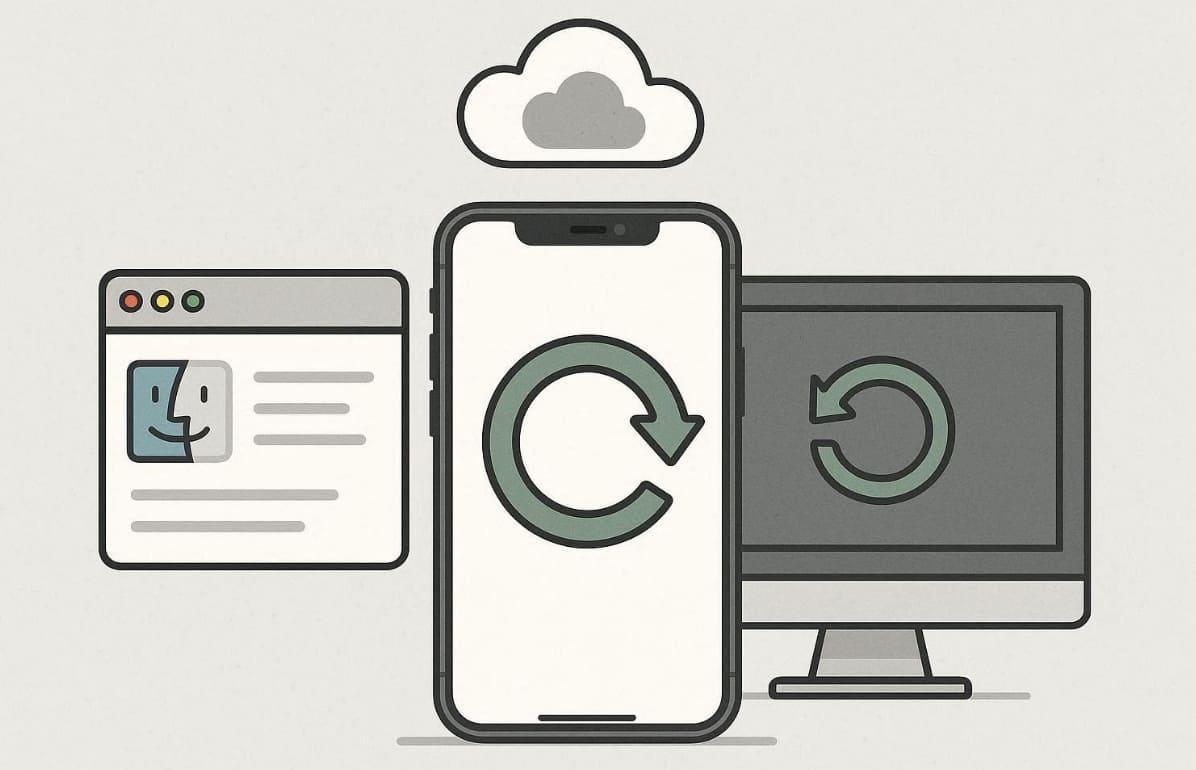
Finder/iTunes, in contrast, allows local restoration from a computer without an internet connection. Both options are designed for users who value consistent results and reliable performance. Plus, they are more useful when mistaken deletion or device errors cause data loss. Thus, learning how to recover deleted photos from iPhone often starts with these official tools.
Part 3: When iPhone Data Recovery Software Is a Better Solution
When no recent backups exist, advanced tools become essential alternatives. Users often turn to iPhone data restore software when official methods fail or miss partial data. These tools help recover files from the device even after deletion or errors. So, below are key situations showing why dedicated software offers better recovery advantages:
- Missing Backups: When no backup exists, software can still locate recoverable iPhone files. It searches deeper than standard restores to find deleted or lost items.
- Partial Recovery: Official backups may miss specific files like photos or app data. Yet, recovery software restores missing items without affecting existing data or settings.
- Mistaken Deletion: If items get deleted before syncing, native recovery overlooks them. Specialized tools retrieve those items from device storage without altering existing files.
- Corrupted Backups: Corruption also prevents backups from being restored by iCloud or Finder. Still, iPhone data recovery software can extract recoverable files even from damaged backups.
- Selective Restore: Some users need specific files instead of restoring the entire backup. So, iPhone recovery software allows picking certain photos, messages, or app data.
Part 4: How Dr.Fone Simplifies the iPhone Data Recovery Process
When recovering lost iPhone data feels complicated, a guided tool becomes essential. For this, Dr.Fone – Data Recovery (iOS) provides an effortless recovery solution for iOS users. It offers a free scan and preview, letting users see recoverable data without hassle. Plus, you can even recover 35+ data types, including photos and chats, without overwriting.
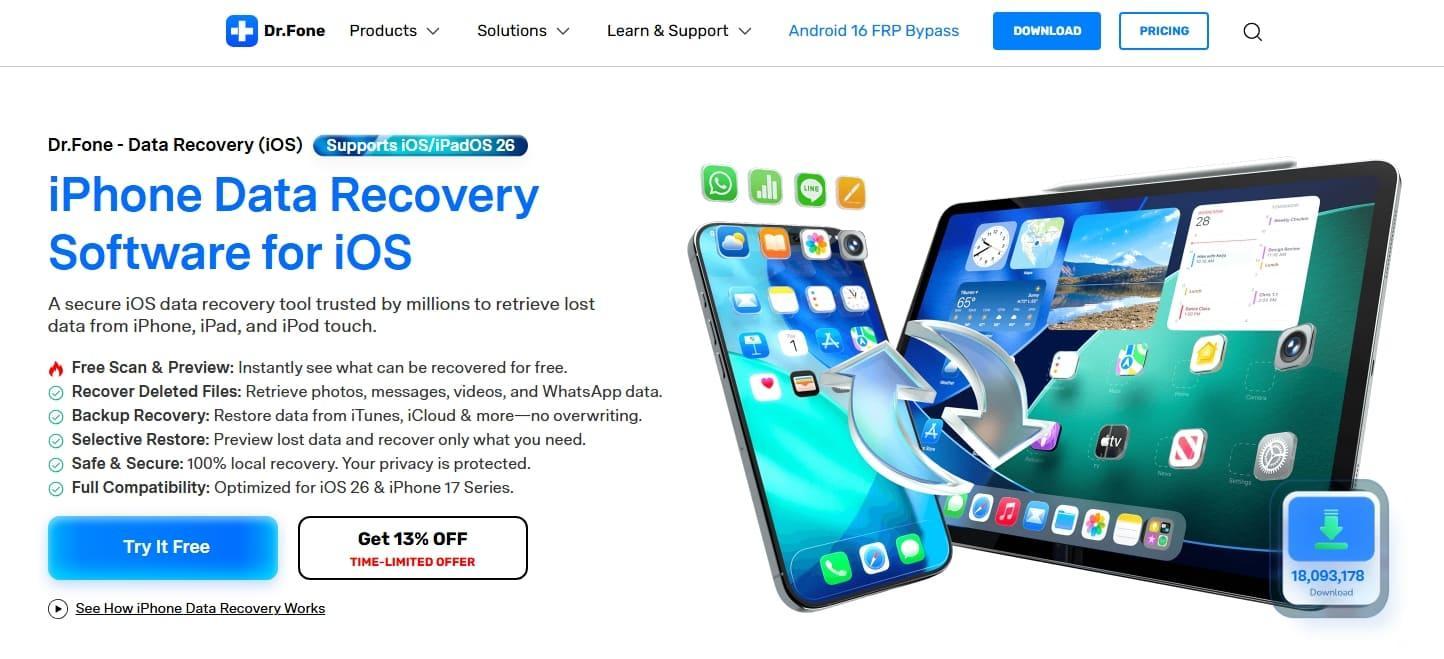
Moreover, this advanced tool operates with full compatibility for iOS 26 and the latest iPhone 17 series. Alongside that, users can even recover data without using cloud or native backups. It also retrieves data from damaged or even crashed devices without hassle. Plus, Dr.Fone data recovery software ensures data privacy through local processing.
Key Features
- Social Recovery: Restores chats and attachments from apps like WhatsApp or Kik.
- iWork Support: Recovers Apple iWork files like Pages and Keynote from devices.
- High Success: Optimized scanning engine improves chances of retrieving deleted data.
Step-by-Step Guide to Recover iPhone Data via Dr.Fone
Dr.Fone stands out as trusted iPhone data recovery software for complex recovery needs. It offers clear steps to retrieve lost files from devices or backups. Thus, the following guide provides clear instructions to recover lost files:
Step 1. Access the iOS Data Recovery Feature
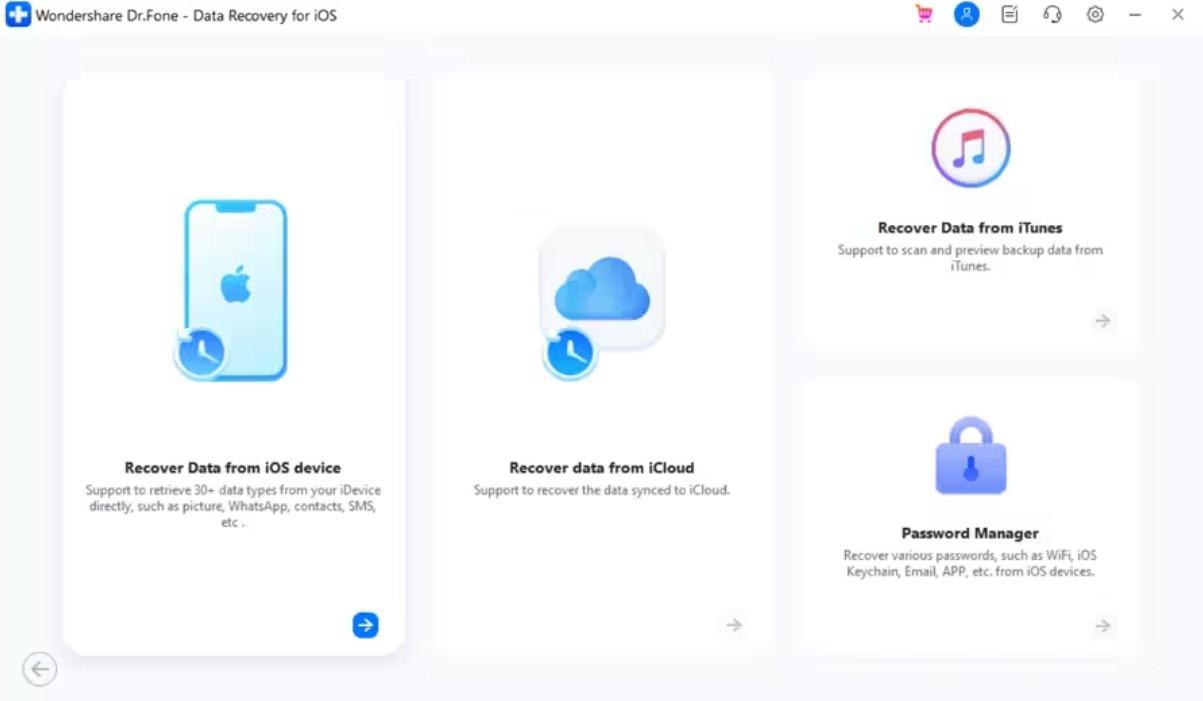
When you head to the “Toolbox” tab, navigate to the “Data Recovery” section and choose “iOS.” Attach your iOS device to the PC and then click “Recover Data from iOS Device.”
Step 2. Select iPhone Data Types to Recover
Upon connecting and showing the data types, choose your desired ones and press “Start Scan.”
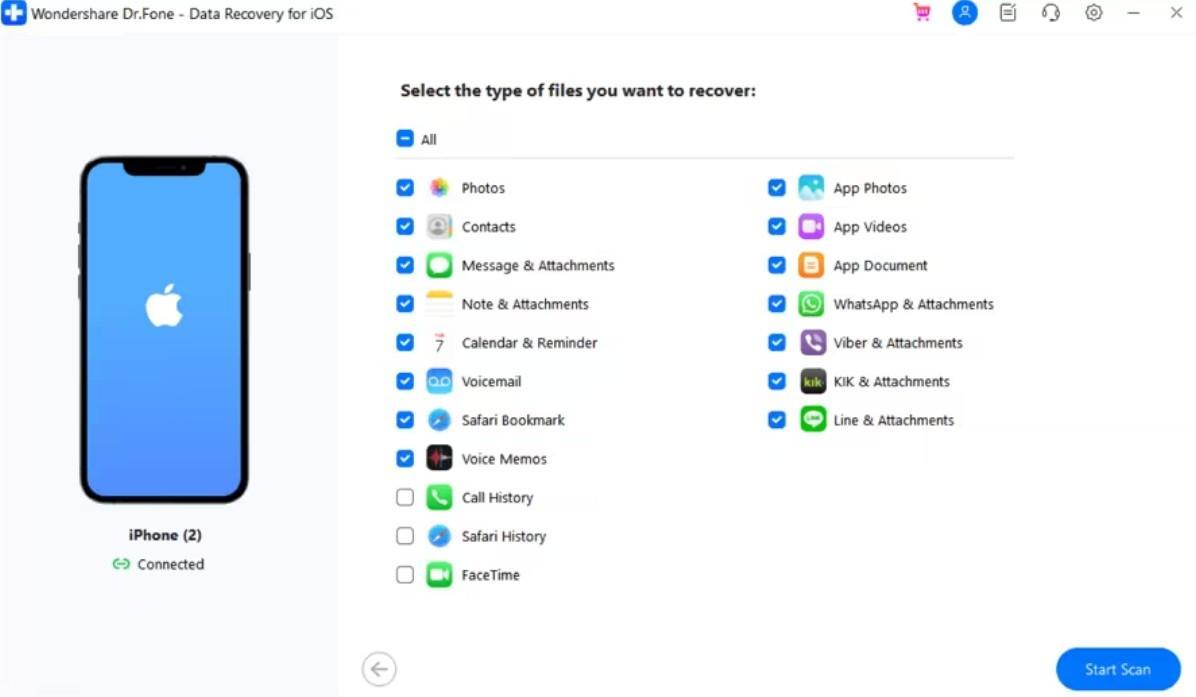
Image name: drfone-data-recovery-software-6.jpg
Image alt: choose iphone data to recover
Step 3. Retrieve Deleted iPhone Data via Dr.Fone
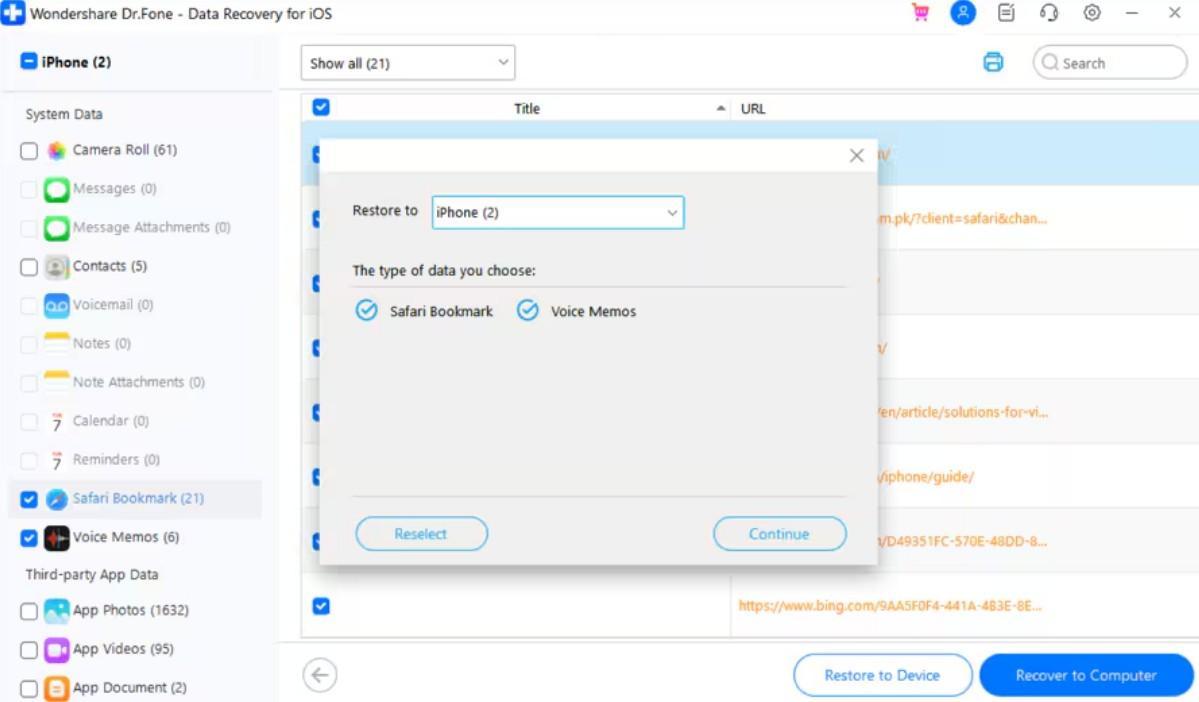
The tool will then initiate scanning all the deleted data from your phone. Once you see the data, tick the ones you wish to recover and press “Restore to Device.” Upon seeing a prompt, select the iPhone as the location and click “Continue” to export it.
Part 5: iPhone Recovery Tool Buyer’s Checklist: Choosing the Right Option
Choosing the right iPhone recovery tool prevents wasted time and permanent data loss. Different situations call for specific recovery methods based on your needs. Also, learning how to recover deleted photos from an iPhone is easier with proper tool selection. The checklist below helps decide between iCloud, Finder, or software solutions:
| Factor | What to Check | Why It Matters | Recommended Option |
|---|---|---|---|
| Device Compatibility | Supports iOS version and iPhone model | Ensures the tool works seamlessly with your device | Dr.Fone – Data Recovery (iOS) |
| Data Types | Photos, messages, contacts, social apps | Determines whether essential files can be recovered | Dr.Fone supports 35+ data types |
| Backup Options | iCloud, iTunes/Finder, or no backup | Flexibility helps recover data in any scenario | Dr.Fone recovers from the device or backups |
| Recovery Method | Full restore or selective recovery | Allows targeted restoration without overwriting | Dr.Fone provides a selective restore option |
| Security or Privacy | Secure processing and local recovery | Protects personal data | Dr.Fone ensures 100% local recovery |
| Ease of Use | Guided workflow and stepwise instructions | Reduces errors for non-technical users | Dr.Fone provides an intuitive interface |
| Recovery Success Rate | High chance of retrieving lost data | Increases confidence in complete recovery | Dr.Fone offers an optimized scanning engine |
| Speed | Time taken to scan and recover | Saves time during urgent recovery needs | Dr.Fone offers fast scanning and extraction |
Conclusion
In conclusion, iPhone recovery choices depend on having backups or facing data loss. iCloud and Finder work best when recent copies of your files exist. When no backups are available, special tools help find and restore missing items. Always check your backup date before starting any recovery to avoid bigger problems. For cases where Apple methods fail, Dr.Fone data recovery software offers a guided solution.

Laila Azzahra is a professional writer and blogger that loves to write about technology, business, entertainment, science, and health.